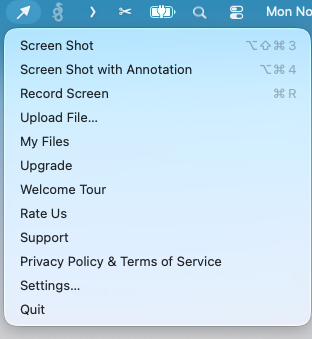
Seamless integration with macOS
Captix lives quietly in your macOS status menu bar. Every screenshot or file you upload is automatically saved and organized into your private dashboard with encrypted cloud links.
Step-by-Step Walkthrough
Locate Captix in the Menu Bar
Look at the top-right corner of your Mac screen. Click the Captix icon in the macOS status bar to open the popup menu.
Select “My Files”
From the dropdown menu, click My Files. Captix will securely open your private browser dashboard with all recent uploads.
Copy Links or Preview
Browse your files with instant thumbnail previews. Click any card to copy its short link, view high-res full size, or download the original file.
Instant Search & Filter
Use the instant search bar in your dashboard to filter by filename, date, or media format in real-time.
Pro Tips for Power Users
Need Help?
If your files are not appearing, ensure you have taken at least one screenshot with Captix on your Mac. If you experience any issues, please reach out to our team.